Create a CMS collection with a title, a formatted-text body, a summary, a cover image and a date. Then add a CMS detail page, and bind its page title, description and social image to those fields. Style the headings inside the body, and publish the site after every new post. A Framer blog that skips any of these still shows the text, but search engines and AI assistants get a page with no description, no preview image and flat headings.
By Yaniv Mizrahi, founder of TalkGenAI. Everything below was tested on a real Framer project on 2 November 2026, while we built our Framer connector.
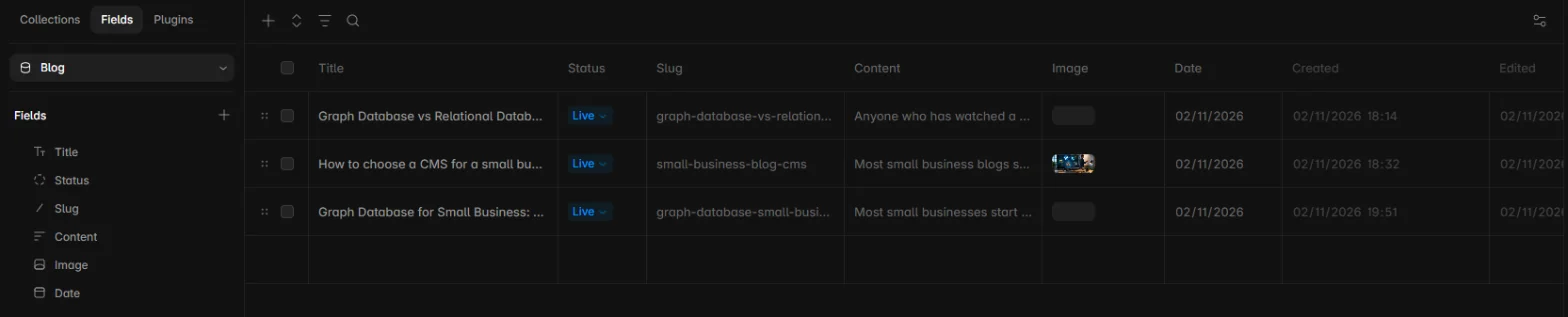
Which fields does a Framer blog collection need?
Five fields cover everything a post needs for search and sharing. Create the collection yourself in the Framer CMS. Collections made by a plugin are read-only for other tools.
| Field | Framer type | Why it matters |
|---|---|---|
| Title | Plain text | The H1 of the post and the base of the page title |
| Content | Formatted text | The article: headings, lists, tables, links and images |
| Excerpt (or Summary) | Plain text | The meta description and the text on blog cards |
| Cover | Image | The social preview image and the blog card image |
| Date | Date | Sorting, "published on", and freshness for readers |
Name them plainly. Tools that write to your CMS, including ours, match fields by name, so "Excerpt" or "Summary" is found where "Field 3" is not.
Which pages do I need, and where do the SEO settings go?
You need two pages: an index page that lists the posts (for example /blog), and a CMS detail page for single posts (for example /blog/:slug). Add the detail page from Pages, then +, then CMS Page, and pick the collection.
The SEO settings live in the detail page's Page Settings, and they take variables in curly braces (Framer's guide):
| Setting | Set it to |
|---|---|
| Title | {{Title}} | Your Brand |
| Description | {{Excerpt}} |
| Social preview image | The CMS variable for the Cover field |
Do this once and every post, past and future, gets its own title, description and preview image. If you skip it, every post shares the page's default description, which is close to having none.
Why do my H2 headings look like normal text?
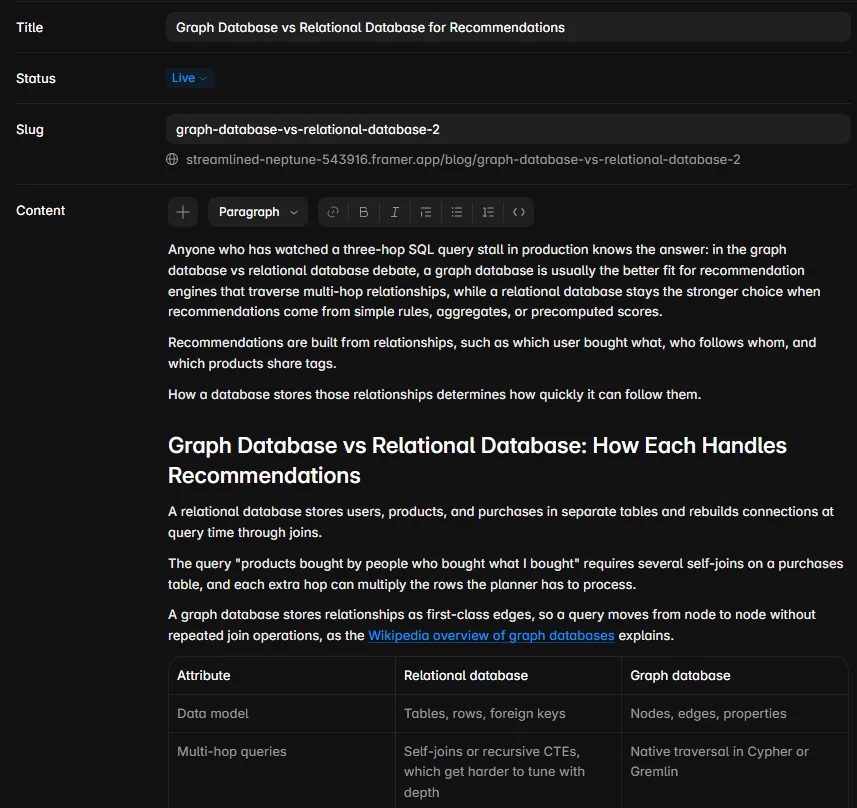
Framer styles the formatted-text body from the text block on the CMS page, and the default block gives headings almost no styling. In our test project the H2s were real <h2> tags in the HTML, but they looked like body text on screen. The fix is in Framer, not in the article. Select the Content text block on the CMS detail page and set the Heading 2 and Heading 3 styles. Every post picks them up.
Search engines read the tags either way. Readers do not: a long post with no visible headings is hard to scan, and people leave.
Where should the images go?
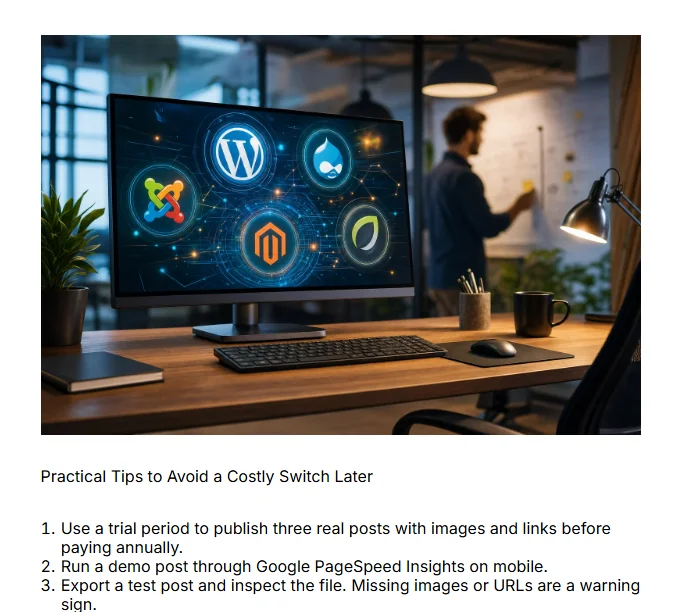
Use the cover for the top of the page and for sharing, and one image inside the article. Framer's default CMS detail page shows the title, date and body, but not the cover. Add an Image layer to the detail page and bind it to the Cover field if you want it at the top.
Inside the body, one image before the middle section breaks up a long article without pushing the answer down. Give every image alt text that describes what it shows. When TalkGenAI publishes to Framer it uploads the cover into your project's assets with its alt text, and puts the same image once inside the article before the middle H2. If you also show the cover at the top of the template, turn the in-article copy off in the connection settings so the picture does not appear twice.
Do internal links work in Framer CMS posts?
Yes. Links inside the formatted-text field are kept as normal links. Link new posts to older ones on the same topic, and to the page that sells what the post is about. In our test, an article about graph databases linked to the older comparison article and to the blog index, and both links worked on the live site. TalkGenAI picks these links from your site's sitemap, which Framer builds for you at /sitemap.xml.
Why does publishing one post publish my whole site?
Framer has no way to publish a single CMS item. Publish pushes every unpublished change in the project, including half-finished design edits. Before TalkGenAI publishes a post live, it checks whether the project has other unpublished changes. If it does, it saves the post and leaves the publish to you. A site that was never published is also left for you to publish the first time.
Will Framer create duplicate content?
Not if the domain is connected in Framer. Your site is reachable at its framer.app or framer.website address and at your custom domain. Framer adds the canonical tag for the custom domain by itself when the domain is connected through Framer. If your site is served through a reverse proxy, set the canonical URL by hand under Settings > Domains (Framer's guide).
The other source of duplicates is the same article saved twice. Each CMS item needs a unique slug, so a second copy gets -2 at the end. We saw exactly that in testing, when an early version of our connector saved a post twice after Framer refused a publish. TalkGenAI now remembers the item it created, and publishing the same article again updates that item in place. Search your blog for the topic before you write it, too.
How do I publish posts to Framer automatically?
Connect the project to TalkGenAI with a project API key, and articles go straight into your blog collection. Create the key in Site Settings > General > API Keys, paste it with your project link, and the collection and fields are matched by name. Posts are saved as drafts unless you choose Live. The full steps, and what each error means, are on Connect Framer.
Checklist before you publish your first post
- The collection has Title, Content, Excerpt, Cover and Date fields.
- A CMS detail page exists, and its title, description and social image use variables.
- Heading 2 and Heading 3 are styled in the Content text block.
- The cover is shown at the top, or the article has its own image inside.
- The custom domain is connected in Framer, so the canonical tag points to it.
- The site has been published at least once.
Try it on your Framer site
Create a free account, connect your Framer project, and publish one article as a draft. Free credits cover about three articles. No card.
Last updated: 2026-11-02